Getting started
The plugin framework is currently an experimental feature and is subject to change. We are working on improving both the technology and the way you use it. We will provide more documentation and examples as we progress.
What are plugins?
Plugins are a way to extend the functionality of our core applications within the DHIS2 ecosystem. These plugins will act and feel like native widgets / components, and allow you to write custom code that will be injected into the core applications, without having to fork or maintain a separate version of the app.
There are currently two types of plugins supported in the Capture app:
Want to learn more about what plugins are and how they work under the hood? Read more about the core plugin technology
Prerequisites
For defining and using plugins in the Capture app, you need to configure the data store in your DHIS2 instance. The data store is a lightweight JSON store that can hold simple key-value pairs and serialized objects. The process for importing a plugin is a bit different based on what type of plugin you want to add, but please make sure that you complete the following steps before moving on to the plugin-specific documentation:
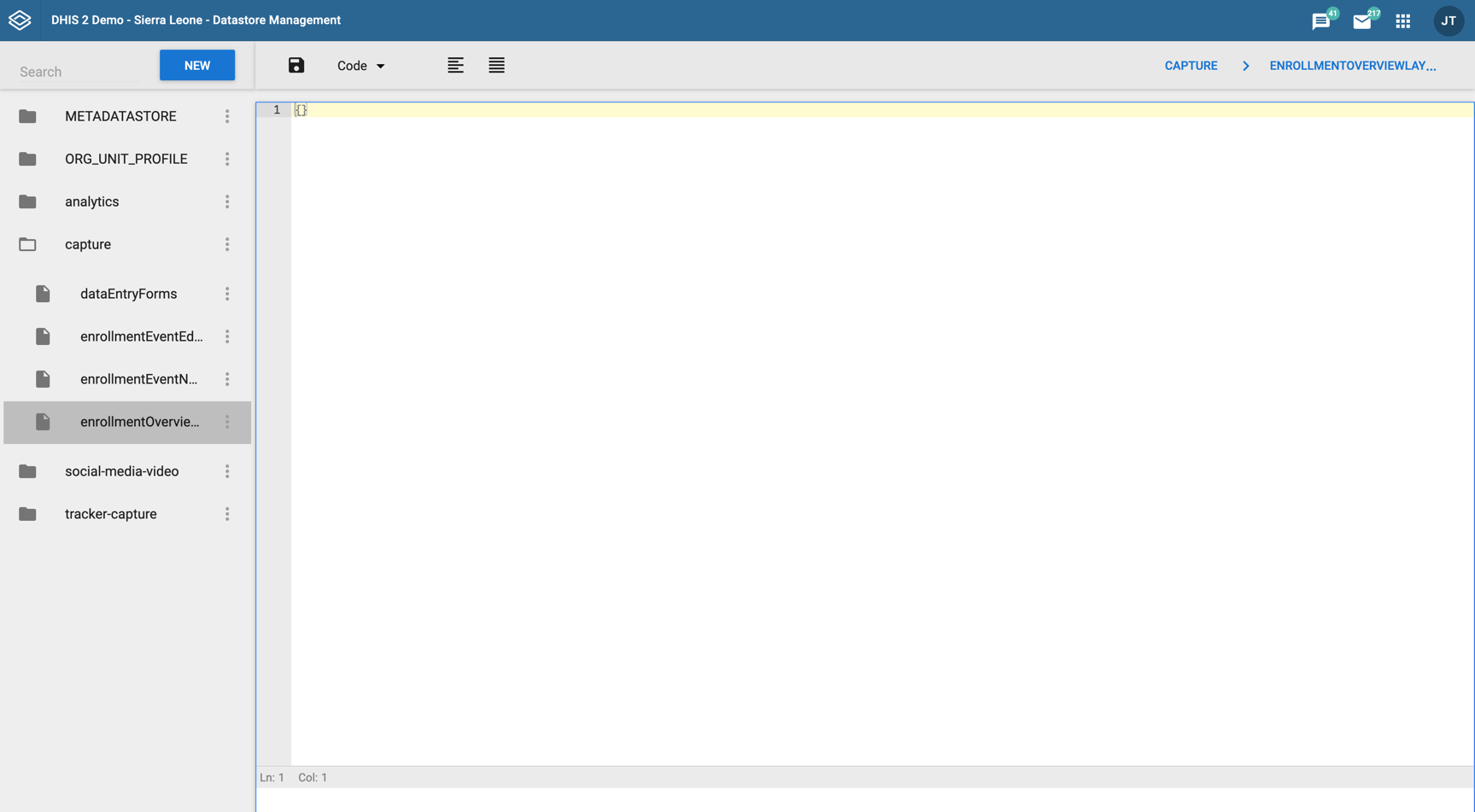
- Log in to your DHIS2 system and open the data store management app. It should look something like this.

- Look at the panel to your left and check if there already exists a key called
capture. If it does, you are ready to move on to the next page. If not, please continue. - If the
capturekey does not exist, click the blueNewbutton above the list of keys. - Fill out the two required fields in the modal that pops up. The
namespacefield should becapture, and thekeyfield should bedataEntryForms.
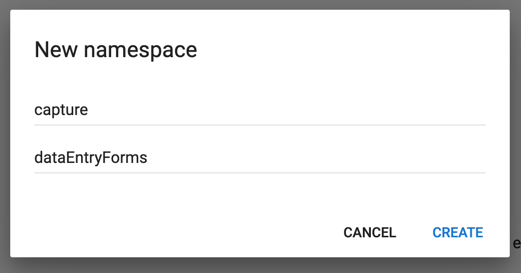
- Click the
Createbutton to create the key.
Great! Now you're ready to start customizing your Capture app with plugins.
To be able to use the enrollment plugins, you need to create three more keys in the same namespace.
Click the three vertical dots to the right of the capture namespace and select New key.
Create the following keys:
enrollmentOverviewLayoutenrollmentEventNewLayoutenrollmentEventEditLayout
After you have created the keys, your data store should look something like this: