WhatsApp to DHIS2 Integration
- Executive Summary
- Introduction
- Requirements
- Assumptions
- Getting Started
- Features
- Configuration
- Management & Monitoring
- Recovering Program Stage Events
- Extending the Connector
- Troubleshooting Guide
Executive Summary
The primary aim of this project was to extend the DHIS-to-RapidPro connector, allowing for self-reporting of DHIS2 Tracker program stages via WhatsApp. The need for such an integration was suggested by HISP India, who collaborated with St. John’s Hospital in Bangalore to address challenges in their neonatal hearing loss screening program. Historically, the program faced issues like manual data entry and high loss in follow-ups. To combat this, an initial mobile application was created, requiring parents to use a specific Android app. However, this presented potential technical barriers.
Wanting to cater to a wider-used messaging channel in India, the decision was made to develop an integration with WhatsApp as an alternative, and so the DHIS-to-RapidPro Tracker extension was developed. This tool, designed as a generic solution, can accommodate multiple use-cases, especially those with questionnaire-like program stages. Considering the concise format of the follow-up questionnaires and the common use of WhatsApp, this integration aims to streamline data collection, increase user participation, and decrease follow-up losses in digital health reporting.
Introduction
DHIS-to-WhatsApp is an extension to DHIS-to-RapidPro, a stand-alone Java solution that integrates DHIS2 with RapidPro. DHIS2 is an open-source information system primarily used in the health domain while RapidPro is an open-source workflow engine for running mobile-based services.
The DHIS-to-WhatsApp extension allows for DHIS2 program stage synchronization with RapidPro flows, enabling users to self report program stages through WhatsApp.
The DHIS-to-RapidPro Tracker extension provides:
-
Triggering RapidPro flows based on scheduled DHIS2 Tracker program stage events
-
Polling flows from RapidPro and updating corresponding DHIS2 Tracker program stage events
DHIS-to-RapidPro also provides aggregate report transfer. For more information on this, please refer to the dhis-to-rapidpro repository.
Requirements
-
Java 11
-
RapidPro >= v7.4
-
DHIS >= v2.37.8
Assumptions
-
The user has thorough knowledge of both the RapidPro and DHIS2 systems.
-
Assumes that RapidPro has been configured to use a WhatsApp channel, either through Twilio or a WhatsApp business profile.
-
The user must be able to identify flow uuids and DHIS2 attribute codes.
-
The contact phone number in DHIS2 can be used a unique identifier.
-
Assumes that both the DHIS2 and RapidPro systems will be able to scale to handle the expected load.
-
Assumes that the phone numbers provided during DHIS2 enrollment are valid and accurate.
-
Assumes that the initial messages sent to the RapidPro contacts has been approved as message templates by whatsApp. If this is not the case, the messages will not be sent.
Getting Started
Shell
*inux
The JAR distribution of DHIS-to-RapidPro allows you to run the application as a stand-alone process. On *nix operating systems, you can execute DHIS-to-RapidPro from your terminal like so:
./dhis2rapidpro.jar
The above command will give an error since no parameters are provided. The next commands are common DHIS-to-RapidPro *nix usage examples:
Enable DHIS2 Tracker program stage event synchronisation
export DHIS2\_API\_PAT=d2pat\_apheulkR1x7ac8vr9vcxrFkXlgeRiFc94200032556
export RAPIDPRO\_API\_TOKEN=3048a3b9a04c1948aa5a7fd06e7592ba5a17d3d0

./dhis2rapidpro.jar --dhis2.api.url=https://demos.dhis2.org/hmis/api \\
--rapidpro.api.url=https://rapidpro.dhis2.org/api/v2 \\
--sync.dhis2.events.to.rapidpro.flows=true
--dhis2.program.stage.rapidpro.flow.map.ZP5HZ87wzc0=0044fe2a-0463-4231-a54d-a27a15e0c838
the commands sets up the necessary authentication environment variables for DHIS2 and RapidPro APIs. It then runs the DHIS-to-RapidPro connector packaged as a JAR file, which is configured to synchronise data between a DHIS2 demo instance and a RapidPro DHIS2 demo instance. Specifically, it links a DHIS2 program stage with id ZP5HZ87wzc0 to a RapidPro flow with uuid 0044fe2a-0463-4231-a54d-a27a15e0c838, enabling automated self reporting based on scheduled events in DHIS2.
Poll completed flow runs
export DHIS2\_API\_PAT=d2pat\_apheulkR1x7ac8vr9vcxrFkXlgeRiFc94200032556
export RAPIDPRO\_API\_TOKEN=3048a3b9a04c1948aa5a7fd06e7592ba5a17d3d0

./dhis2rapidpro.jar --dhis2.api.url=https://demos.dhis2.org/hmis/api \\
--rapidpro.api.url=https://rapidpro.dhis2.org/api/v2 \\
--rapidpro.poll.event.flow.runs=true
Completed event flow runs are polled by default, but can be turned off by setting the rapidpro.poll.event.flow.runs configuration property to false.
Windows
To execute DHIS-to-RapidPro from Windows, enter the following terminal command:
java -jar dhis2-to-rapidpro.jar
The above command will give an error since no parameters are provided. The next commands are common DHIS-to-RapidPro Windows usage examples:
Enable DHIS2 Tracker event synchronisation
set DHIS2\_API\_PAT=d2pat\_apheulkR1x7ac8vr9vcxrFkXlgeRiFc94200032556
set RAPIDPRO\_API\_TOKEN=3048a3b9a04c1948aa5a7fd06e7592ba5a17d3d0

java -jar dhis2rapidpro.jar \\
--dhis2.api.url=<https://play.dhis2.org/2.38.1/api> \\
--sync.dhis2.events.to.rapidpro.flows=true
--dhis2.program.stage.rapidpro.flow.map.ZP5HZ87wzc0=0044fe2a-0463-4231-a54d-a27a15e0c838
Poll completed flow runs
set DHIS2\_API\_PAT=d2pat\_apheulkR1x7ac8vr9vcxrFkXlgeRiFc94200032556
set RAPIDPRO\_API\_TOKEN=3048a3b9a04c1948aa5a7fd06e7592ba5a17d3d0

java -jar dhis2rapidpro.jar \\
--dhis2.api.url=<https://play.dhis2.org/2.38.1/api> \\
--rapidpro.api.url=<https://rapidpro.dhis2.org/api/v2> \\
--rapidpro.poll.event.flow.runs=true
WAR
To run DHIS-to-RapidPro as a web application inside a web container like Tomcat, download the latest WAR distribution and drop it in the web container's applications directory. Configuration properties for WAR deployment can be expressed as:
-
OS environments variables
-
Key/value pairs in a file named
application.properties. Create a directory calledconfigwithin the web container's working directory and placeapplication.propertiesin this new directory. -
YAML in a file named
application.yml. Create a directory calledconfigwithin the web container's working directory and placeapplication.ymlin this new directory.
Features
Program Stage Event Synchronisation
SECURITY: contact creation in RapidPro copies personal data from DHIS to RapidPro. Ensure that the data provider agrees to sharing DHIS2 enrollment details with the data receiver before activating program stage event synchronisation.
During DHIS2 Tracker program stage event synchronisation, DHIS-to-RapidPro fetches scheduled program stage events from your DHIS2 server to trigger the corresponding RapidPro flows. Before a RapidPro flow can be triggered, the connector either:
-
create RapidPro contacts containing the DHIS2 enrollment’s phone number, or
-
update existing RapidPro contacts to match any changes in the corresponding DHIS2 enrollment.
Application errors during the triggering of RapidPro flows will lead to warnings in the log but the error will not abort the process. In other words, fetching DHIS2 events and triggering the corresponding RapidPro flows may be partially successful.
Program stage event synchronisation is disabled by default. Setting the configuration property sync.dhis2.events.to.rapidpro.flows to true enables this feature. The interval rate at which due program stage events are fetched is expressed as a cron expression with the config key sync.events.schedule.expression. Alternatively, from your web browser, enter the DHIS-to-RapidPro's URL (e.g., <https://localhost:8443/dhis2rapidpro)> together with the path /services/tasks/syncEvents in the address bar to kick off fetching events and triggering the corresponding RapidPro flows.
Follow the provided setup instructions for DHIS2 and RapidPro to enable the triggering of RapidPro flows and to transfer program stage events from RapidPro to DHIS2. The instruction guide specifically demonstrates how to link the 'Specimen Collection & Transport' program stage from the 'AFI - Acute Febrile Illness' program (available in the HMIS DHIS2 demo instance ) to a corresponding flow in RapidPro.
DHIS2 Instructions
-
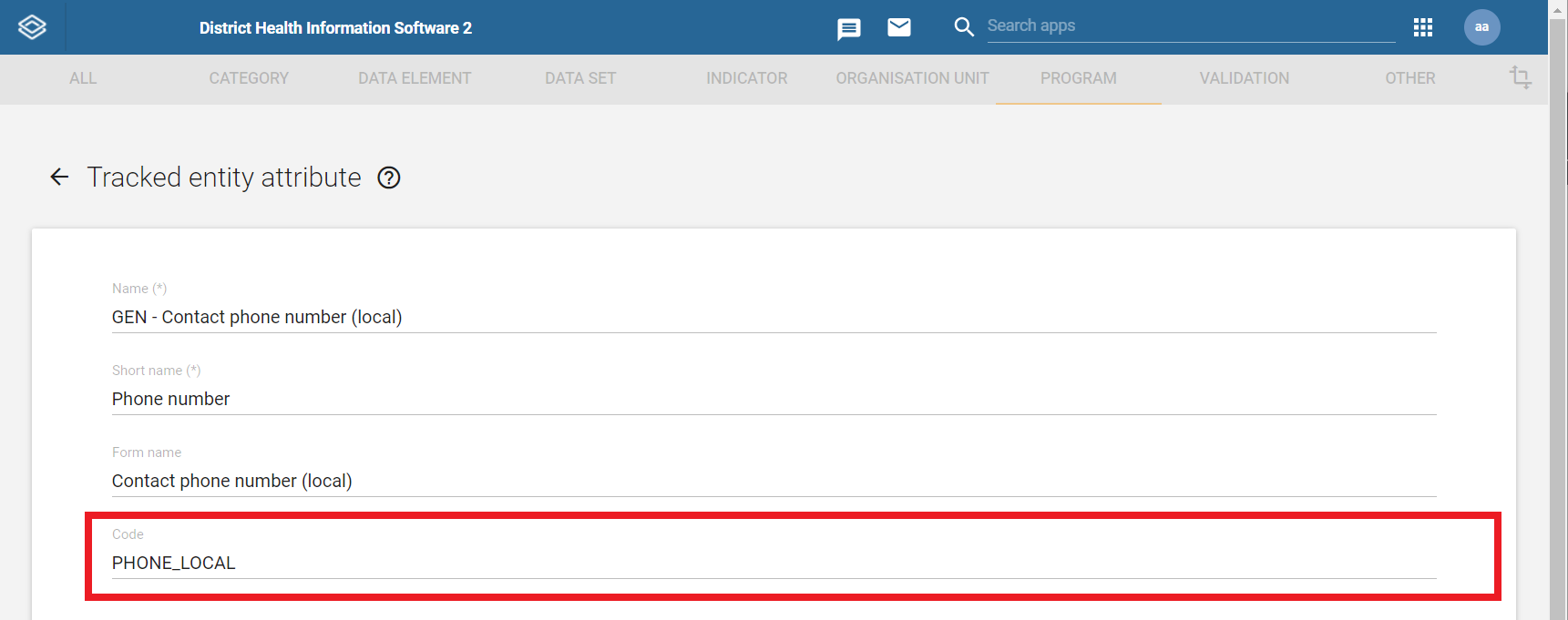
Configure a code for the tracked entity attribute that you would like to represent the contact URN in RapidPro:
-
Go to the maintenance app
-
Open the program page
-
Click on Tracked entity attribute
-
Click or search for the tracked entity attribute that you want to use as the contact URN
-
Enter a suitable code in the Code field as shown in the following picture:
-
Take a note of the configured tracked entity attribute code, as you will need it later for the DHIS-to-RapidPro configuration
-
-
For each program stage that you want to connect to a RapidPro flow, you will need the program stage id:
-
Go to the maintenance app
-
Open the program page
-
Click on Program
-
Click or search for your program
-
In the Tracker Program window, navigate to the Program Stages tab
-
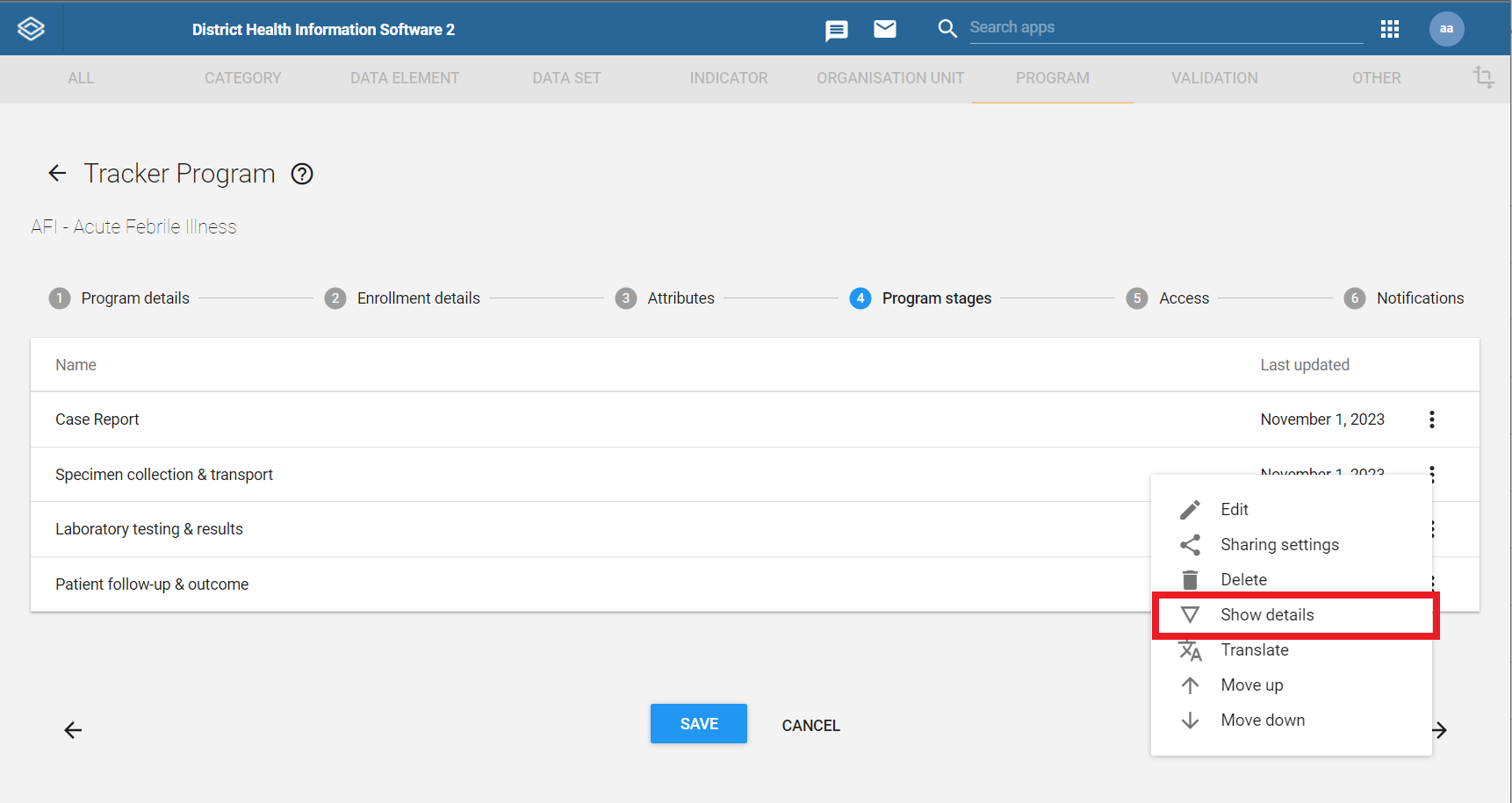
For each program stage that you want to connect to a RapidPro flow, click on the three dots to the right in the program stage row, and then “Show details”:
-
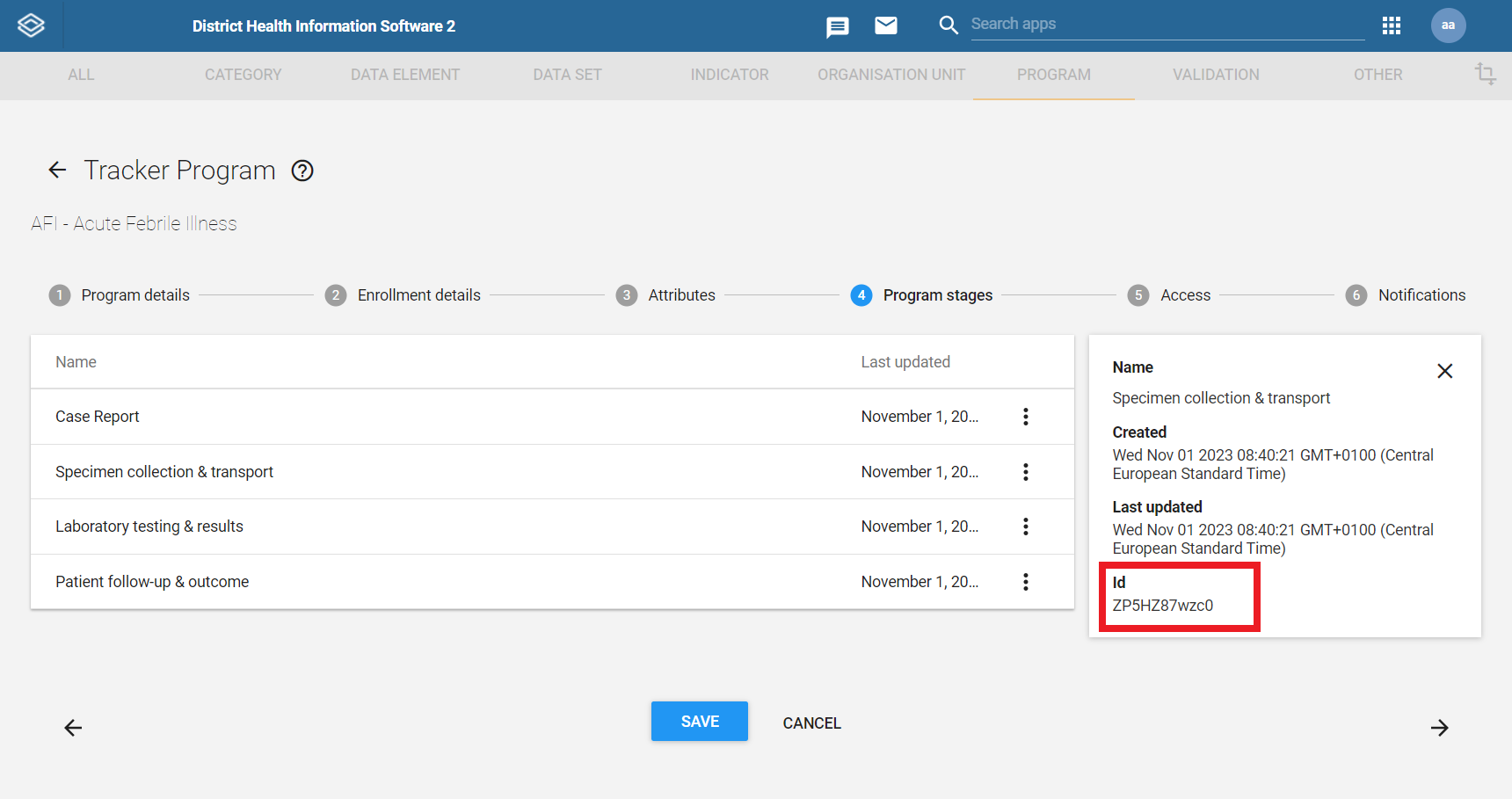
Take a note of the program stage id, as you will need it later for the DHIS-to-RapidPro configuration:
-
-
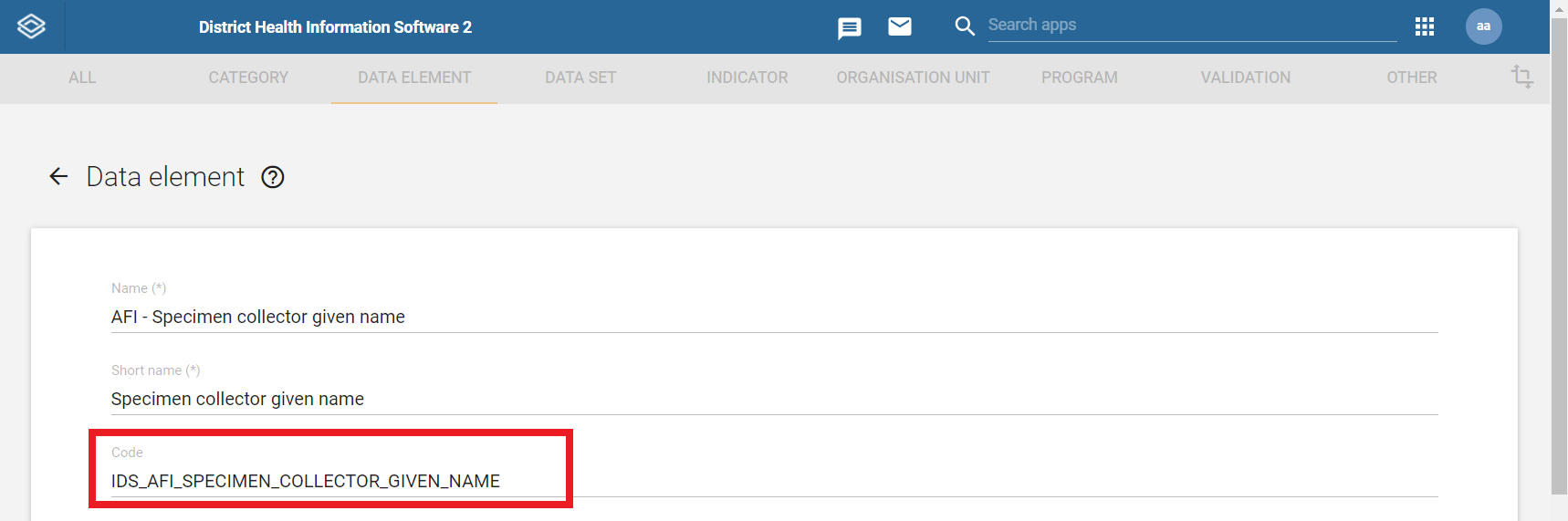
Configure a code in each program stage data element that will capture a result value from RapidPro. To configure the program stage data element code:
-
Go to the maintenance app
-
Open the data elements page
-
Search for the data element
-
Enter a suitable code in the Code field as shown:
-
-
IMPORTANT: you need to enter a code that starts with a letter, a hyphen, an underscore, or a whitespace to achieve successful interoperability between DHIS2 and RapidPro. Special characters that are not permitted in a RapidPro result name should NOT be part of the code. Hyphens, underscores, and whitespaces are typically permitted.
RapidPro Instructions
DHIS-to-RapidPro can ingest program stage events from RapidPro as completed flow executions that are retrieved while polling the RapidPro API:
-
Open a RapidPro flow definition that processes the program stage event or create a new flow definition.
-
Identify the root of each happy flow path, that is, the root of each successful execution path. You should apply the proceeding steps to these root paths.
-
Save a flow result containing the event_id that is passed to the flow during the trigger from the DHIS-to-RapidPro connector:
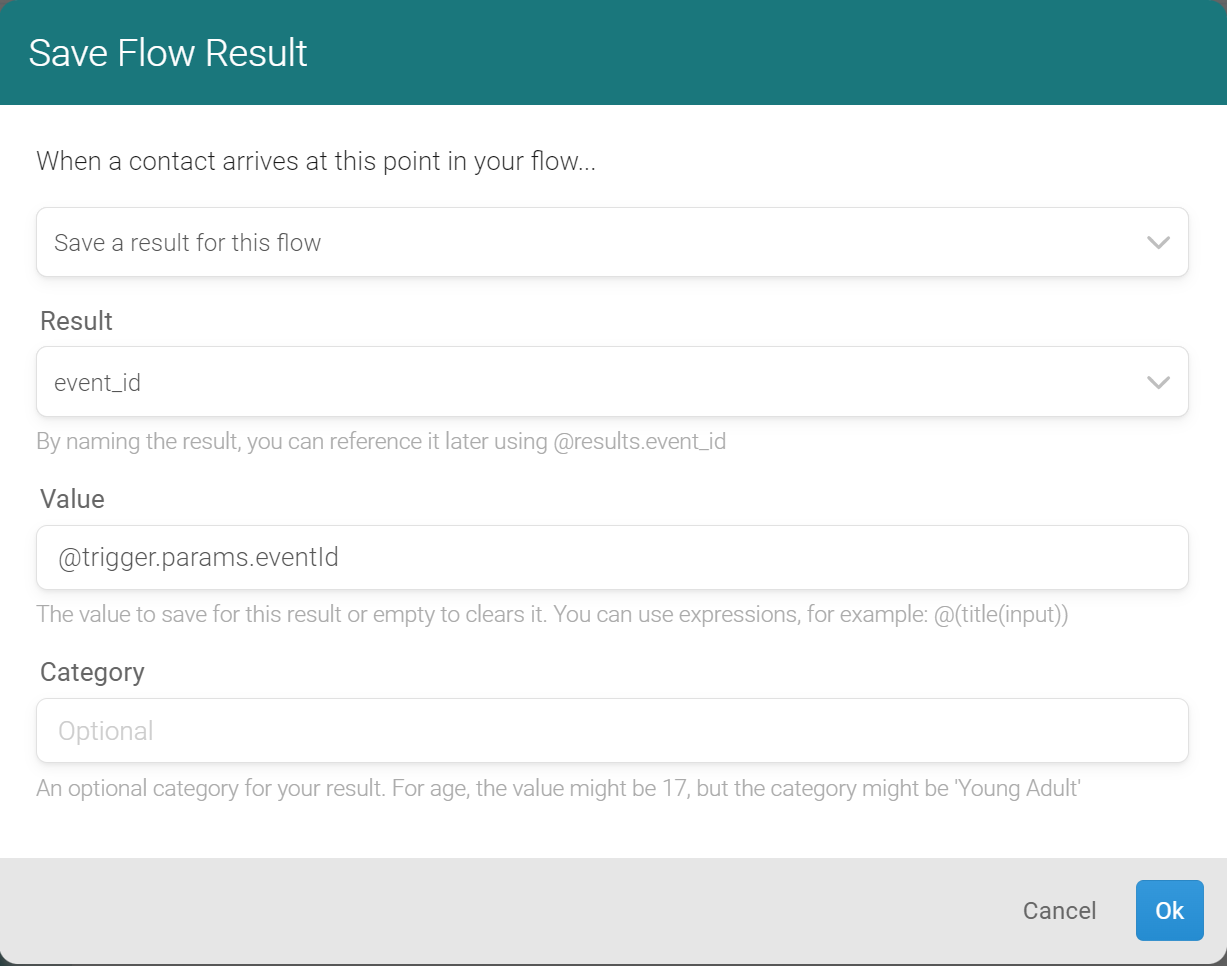
The
@trigger.params.eventIdvalue fetches the event ID from the connector payload that triggered the flow. -
Save each incoming program stage data element value to a result as per the example shown:
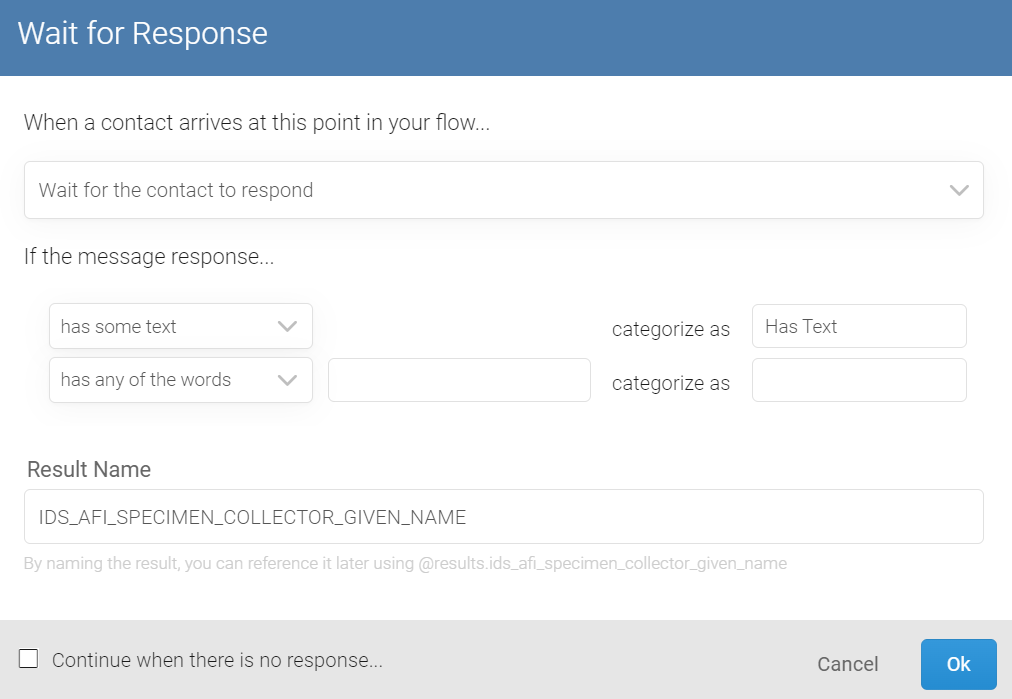
The result name must match the code of the corresponding program stage data element in DHIS2. Upper case letters in the data element code can be entered as lower case letters in the result name field while whitespaces and hyphens can be entered as underscores.
-
It is possible to leverage the RapidPro message filters to match the expected data type of the program stage data element. In the example below, we filter the response as a Date value type:
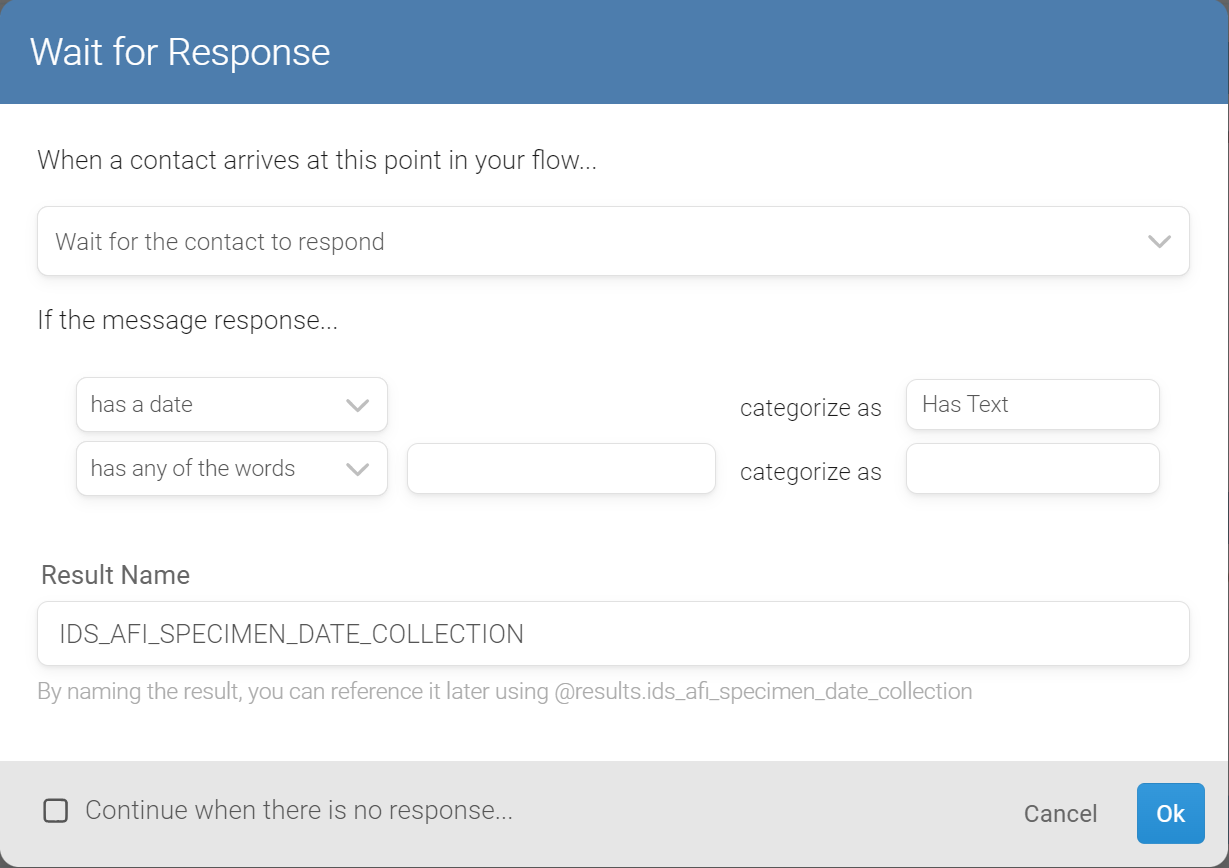
-
Take a note of the UUID of the flow definition from your web browser’s address bar, as you will need it later for the DHIS2-to-RapidPro configuration:

NOTE: scan.reports.schedule.expression config property determines how often flow executions are polled. Consult the configuration section for further information.
While DHIS-to-RapidPro is running, to manually kick off the scanning of event flow runs:
-
Open your web browser
-
Type the DHIS-to-RapidPro URL together with the path
/services/tasks/scaninside the browser address bar -
Press enter
DHIS-to-RapidPro Instructions
This section illustrates the minimum number of configuration parameters in the connector that are necessary to connect the 'Specimen Collection & Transport' program stage from the 'AFI - Acute Febrile Illness' program to a corresponding flow in RapidPro. Please consult the configuration section for further information on the configuration parameters.
| Config name | Description | Example value |
|---|---|---|
rapidpro.api.url | RapidPro server Web API URL. | https://rapidpro.dhis2.org/api/v2 |
rapidpro.api.token | API token to authenticate with on RapidPro. | 3048a3b9a04c1948aa5a7fd06e7592ba5a17d3d0 |
dhis2.api.url | DHIS2 server Web API URL. | https://demos.dhis2.org/hmis/api |
dhis2.api.username | Username of the DHIS2 user to operate as. | demo_en |
dhis2.api.password | Password of the DHIS2 user to operate as. | District1# |
sync.dhis2.events.to.rapidpro.flows | Whether to enable program stage event to RapidPro flow synchronisation. | true |
dhis2.program.stage.rapidpro. flow.map.ZP5HZ87wzc0 | A map between a single program stage id and the corresponding RapidPro flow UUID that you want to map to. | 0044fe2a-0463-4231-a54d-a27a15e0c838 |
dhis2.phone.number.attribute. code | The tracked entity attribute code of the attribute that you want to use as the contact URN. | PHONE_LOCAL |
To execute DHIS-to-RapidPro with these config properties in Windows, enter the following terminal commands:
set DHIS2\_API\_USERNAME=demo\_en
set DHIS2\_API\_PASSWORD=District1#
set RAPIDPRO\_API\_TOKEN=3048a3b9a04c1948aa5a7fd06e7592ba5a17d3d0

java -jar dhis2rapidpro.jar \\
--dhis2.api.url=https://demos.dhis2.org/hmis/api \\
--rapidpro.api.url=<https://rapidpro.dhis2.org/api/v2> \\
--sync.dhis2.events.to.rapidpro.flows=true
--dhis2.program.stage.rapidpro.flow.map.ZP5HZ87wzc0=0044fe2a-0463-4231-a54d-a27a15e0c838
--dhis2.phone.number.attribute.code=PHONE\_LOCAL
Configuration
By order of precedence, a config property can be specified:
-
as a command-line argument (e.g.,
--dhis2.api.url=https://demos.dhis2.org/hmis/api) -
as an OS environment variable (e.g.,
export DHIS2_API_URL=https://demos.dhis2.org/hmis/api) -
in a key/value property file called
application.propertiesor a YAML file namedapplication.yml
SECURITY: the application rejects secrets like passwords set from command-line arguments.
| Config name | Description | Default value | Example value |
|---|---|---|---|
dhis2.api.url | DHIS2 server Web API URL. | https://demos.dhis2.org/hmis/api | |
dhis2.api.pat | Personal access token to authenticate with on DHIS2. This property is mutually exclusive to dhis2.api.username and dhis2.api.password. | d2pat_apheulkR1x7ac8vr9vcxrFkXlgeRiFc94200032556 | |
dhis2.api.username | Username of the DHIS2 user to operate as. | demo_en | |
dhis2.api.password | Password of the DHIS2 user to operate as. | District1# | |
rapidpro.api.url | RapidPro server Web API URL. | https://rapidpro.dhis2.org/api/v2 | |
rapidpro.api.token | API token to authenticate with on RapidPro. | 3048a3b9a04c1948aa5a7fd06e7592ba5a17d3d0 | |
server.port | The TCP port number the application will bind to for accepting HTTP requests. | 8443 | 443 |
sync.events.schedule. expression | Cron expression for fetching due program stage events from DHIS2. By default, due events are fetched every half hour. | 0 0/30 * * * ? | 0 0 0 * * ? |
scan.reports.schedule.expression | Cron expression specifying how often RapidPro is queried for flow executions. By default, RapidPro is queried every thirty minutes. | 0 0/30 * * * ? | 0 0 0 * * ? |
sync.dhis2.events.to. rapidpro.flows | Whether to enable program stage event to RapidPro flow synchronisation. | false | true |
rapidpro.poll.event. flow.runs | Whether to enable the polling of completed RapidPro program stage event flows. | true | false |
dhis2.phone.number. attribute.code | The tracked entity attribute code of the attribute that you want to use as the contact URN. | PHONE_LOCAL, WHATSAPP_NUMBER, PHONE_NUMBER | |
dhis2.given.name.attribute.code | (Optional) The given name of the subject being enrolled. Can be used in the RapidPro flow to personalize the messages. | GIVEN_NAME | |
dhis2.program.stage. rapidpro.flow.map. PROGRAM_STAGE_ID | A map between a single program stage id and the corresponding RapidPro flow UUID that you want to map to. For each mapping, define a new config value where you replace the PROGRAM_STAGE_ID placeholder with the program stage id that you want to map. Please see the example values for reference. | dhis2.rapidpro.map.ZP5HZ87wzc0=0044fe2a-0463-4231-a54d-a27a15e0c838dhis2.rapidpro.map.Ish2wk3eLg3=9eb4ebe3-48d6-46bb-bda3-b1adb6dfb406 | |
rapidpro.contact. scheme | RapidPro messaging channel scheme. | whatsapp | facebook, twitterid, viber, line, telegram, external, jiochat, wechat, tel |
server.ssl.enabled | Whether to enable TLS support. | true | false |
test.connection. startup | Test connectivity with DHIS2 and RapidPro during start-up. In case of connection failure, the application will print an error and terminate. | true | false |
spring.security.user. name | Login username for non-webhook services like the Hawtio and H2 web consoles. | dhis2rapidpro | admin |
spring.security.user. password | Login password for non-webhook services like the Hawtio and H2 web consoles. | dhis2rapidpro | secret |
spring.h2.console.enabled | Whether to enable the H2 web console. | true | false |
spring.h2.console.settings.web-allow-others | Whether to enable remote access to the H2 web console. | false | true |
spring.jmx.enabled | Whether to expose the JMX metrics. | true | false |
management.endpoints.web.exposure.include | Management endpoint IDs that should be included or '*' for all. | * |
Database
DHIS-to-RapidPro requires a relational database to store:
-
delivered as well as undelivered program stage events
-
the context between successive flow polls
H2 is the embedded database that DHIS-to-RapidPro offers out-of-the-box. H2 is production-ready but may be lacking features that are available from your favourite database. You might even want to persist DHIS-to-RapidPro’s state in your organisation’s central database.
The following configuration properties should be considered when persisting to a different database:
| Config name | Description | Default value | Example value |
|---|---|---|---|
spring.sql.init.platform | Database platform to use in the default schema or the DML statements. | h2 | psotgresql |
spring.datasource.url | JDBC URL for persisting the application state. | jdbc:h2:./dhis2rapidpro;AUTO_SERVER=TRUE | jdbc:postgresql://localhost:5432/dhis2rapidpro |
spring.datasource.username | Username to access the JDBC data source. | dhis2rapidpro | postgres |
spring.datasource.password | Password to access the JDBC data source. | dhis2rapidpro | postgres |
spring.datasource.driver-class-name | Class name of the JDBC driver used to connect to the database. | org.h2.Driver | org.postgresql.Driver |
spring.sql.init.schema-locations | Locations of the schema (DDL) scripts to apply to the database. | classpath:/schema.sql | file:db/schema.postgres.sql |
sql.data-location | Location of the properties file containing the DML statements to run on the database. | classpath:/sql.properties | file:db/sql.properties |
spring.sql.init.mode | Mode to apply when determining whether database initialisation should be performed. | always | never |
SECURITY: create a dedicated database user for DHIS-to-RapidPro when using another database. The database user should only have read and write privileges to the database objects created by DHIS-to-RapdPro.
Switching databases requires that you add the database vendor’s JDBC driver to the Java classpath. When running the DHIS-to-RapidPro executable, third-party libraries should reside in the libdirectory relative to DHIS-to-RapidPro’s working directory.
NOTE: DHIS-to-RapidPro's working directory is relative to the current directory when DHIS-to-RapidPro is executed as a JAR (e.g.,
java -jar dhis2-to-rapidpro.jar). On the other hand, the working directory is relative to the JAR binary when DHIS-to-RapidPro is executed as a shell command (e.g.,./dhis2-to-rapidpro.jar).
Apart from H2, PostgreSQL is supported as well. To configure the application's connection to PostgreSQL:
-
Set the
spring.sql.init.platformconfiguration property topostgresql -
Set the
spring.datasource.urlconfiguration property to the required JDBC address -
Set the
spring.datasource.usernameandspring.datasource.passwordconfiguration properties to the database username and password, respectively. -
Set the
spring.datasource.driver-class-nameconfiguration property toorg.postgresql.Driver -
Download the PostgreSQL JDBC driver and place it in the
libdirectory as explained earlier.
For databases other than H2 and PostgreSQL, you might need to tweak the application's DDL and DML statements to be compatible with your database. Modified DDL statements should reside in a file that spring.sql.init.schema-locations is referencing. Modified DML statements should reside in a file that sql.data-location is referencing. The bundled PostgreSQL schema and queries are a useful point of reference when writing these SQL statements.
Management & Monitoring
DHIS-to-RapidPro exposes its metrics through JMX. A JMX client like VisualVM can be used to observe these metrics, however, DHIS-to-RapidPro comes bundled with Hawtio so that the system operator can easily monitor and manage the application's runtime operations without prior setup.
From the Hawtio web console, apart from browsing application logs, the system operator can manage queues and endpoints, observe the application health status and collect CPU and memory diagnostics, as well as view application settings:
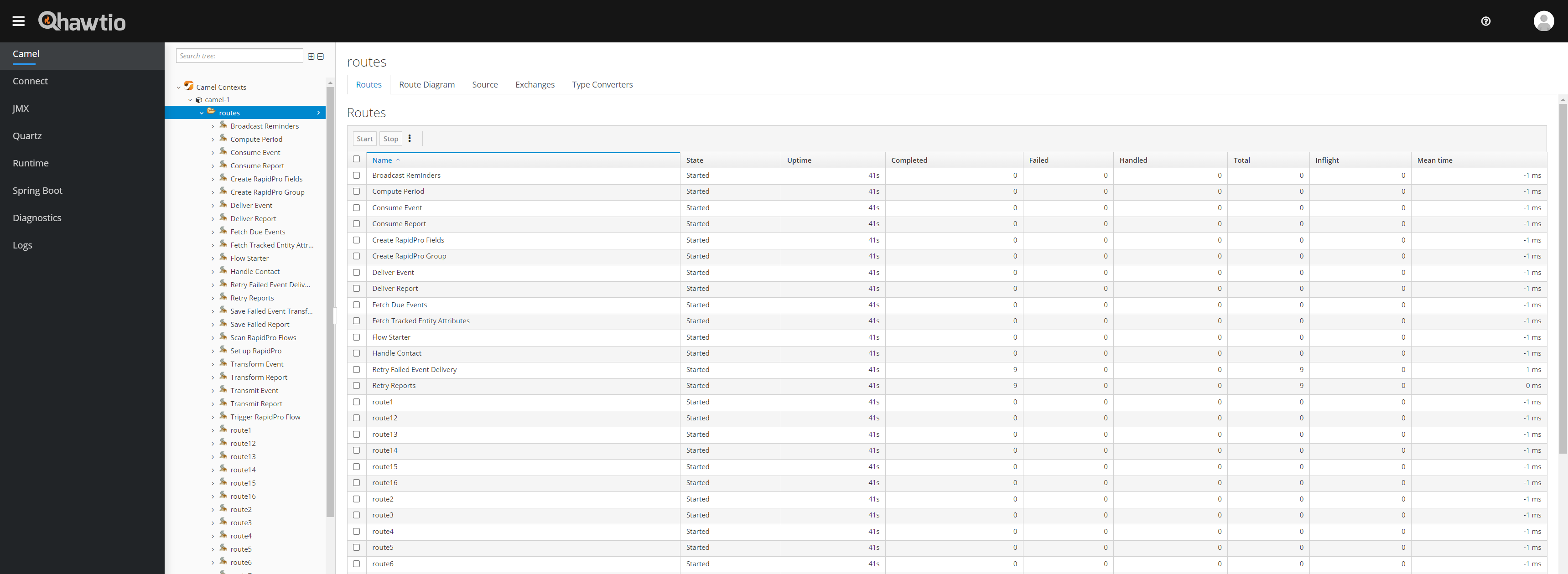
You can log into the Hawtio console locally from https://localhost:8443/dhis2rapidpro/management/hawtio using the username and password dhis2rapidpro. Set the parameter management.endpoints.web.exposure.include to an empty value (i.e., --management.endpoints.web.exposure.include=) to deny HTTP access to the Hawtio web console.
SECURITY: immediately change the login credentials during setup (see
spring.security.user.nameandspring.security.user.passwordin Configuration).
Stopping Routes
Individual integration points, or routes, can be shut down from Hawtio while the application is running. This is especially useful for maintenance reasons. For example, you may want to suspend the processing of events while DHIS2 is down to undergo scheduled maintenance. To stop a route, from the Hawtio console:
-
Click the
Cameltab on the left-hand side menu -
Expand
Camel Contextsfrom the navigation tree -
Expand
camel-1 -
Expand
routes -
Select the route you want to stop
-
Move the cursor over to the
Startedbutton on the far right-hand side corner of the page and click on it to reveal the drop-down menu -
Click on
Stop
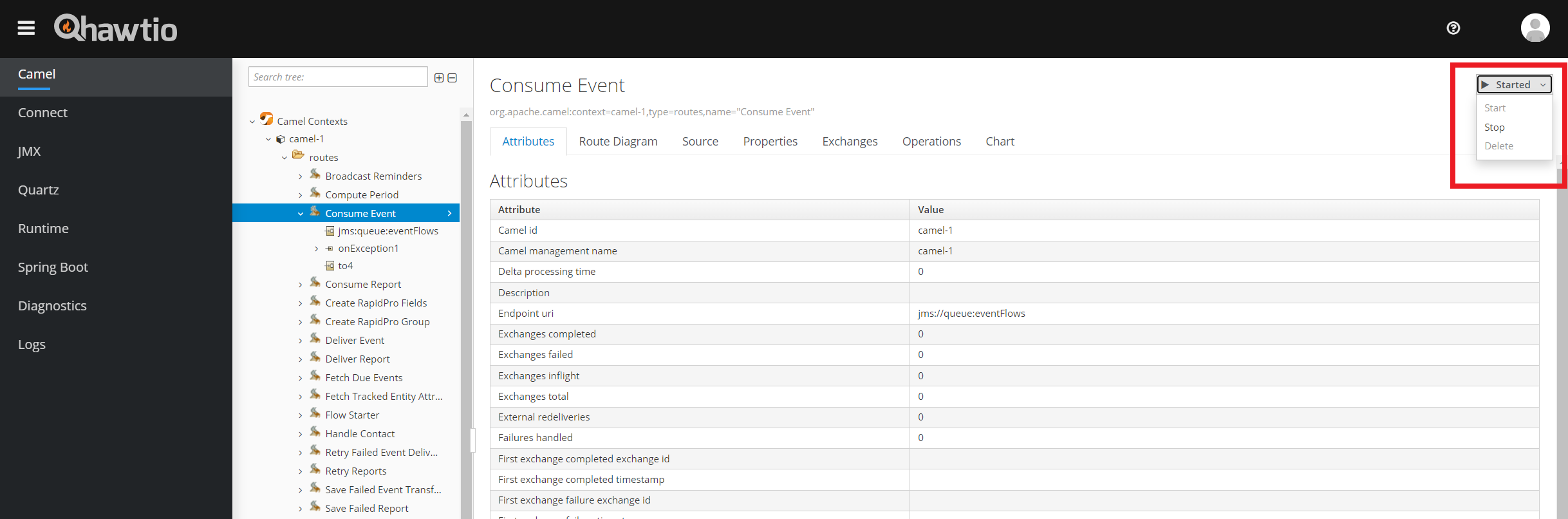
You should see a console notification saying Route stopped successfully and the route marked as Stopped. To restart the route, click on the Stopped button and select Start.
Recovering Program Stage Events
An event that fails to be delivered to DHIS2, perhaps because of an invalid event ID configuration or an HTTP timeout error, has its associated RapidPro flow run JSON payload pushed to a relational dead letter channel called failed event delivery for manual inspection. The failed event delivery channel table schema is as follows:
| Column name | Column type | Description | Column value example |
|---|---|---|---|
| ID | INTEGER | An auto-increment number identifying the row uniquely. | 6 |
| PAYLOAD | VARCHAR | Flow run JSON document. | { "flow": { "uuid": "a6928238-42c3-42b7-9c77-2e1f87945b39", "name": "Specimen collection and shipment to NRL" }, "contact": { "uuid": "96e423da-3365-4123-bd26-a9c00efdef0f", "urn": "whatsapp:12345678", "name": "John Doe" }, "results": { "event_id": { "value": "NfFndGv2Csc" }, "ids_afi_specimen_collection_blood": { "value": "true" }, "ids_afi_specimen_collection_serum": { "value": "true" }, "ids_afi_specimen_collector_family_name": { "value": "John" }, "ids_afi_specimen_collector_given_name": { "value": "Doe" }, "ids_afi_specimen_date_collection": { "value": "2023-10-19" }, "ids_afi_specimen_date_transport": { "value": "2023-10-19" }, "ids_afi_specimen_time_collection": { "value": "12:00" }, "ids_afi_specimen_time_transport": { "value": "12:00" } } } |
| EVENT_ID | VARCHAR | Event ID of the DHIS2 program stage event that an update was attempted on. | NfFndGv2Csc |
| ERROR_MESSAGE | VARCHAR | Message describing the root cause of the error. | Response{protocol=http/1.1, code=500, message=, url=<https://demos.dhis2.org/api/tracker |
| STATUS | ENUM | Specifies the row's state which determines how the application processes the row. The user sets the status to RETRY for payloads that need to be retried. DHIS-to-RapidPro sets the status to ERROR for payloads that could not be processed successfully. Alternatively, payloads that are processed are marked as PROCESSED. | ERROR |
| CREATED_AT | TIMESTAMP WITH TIME ZONE | Denotes the time the row was created. | 2023-11-01 11:09:57.992 +0200 |
| LAST_PROCESSED_AT | TIMESTAMP WITH TIME ZONE | Denotes the last time the row was processed. | 2023-11-01 11:09:57.992 +0200 |
You can re-process a failed report by setting its corresponding row status column to RETRY using an ANSI SQL UPDATE command issued from an SQL client connected to the data store. For instance:
UPDATE FAILED\_EVENT\_DELIVERY SET status = 'RETRY' WHERE status = 'ERROR'
H2 is the default relational data store that manages the dead letter channel. H2 has an in-built web console which allows you to issue SQL commands in order to view, edit, and retry failed event deliveries:
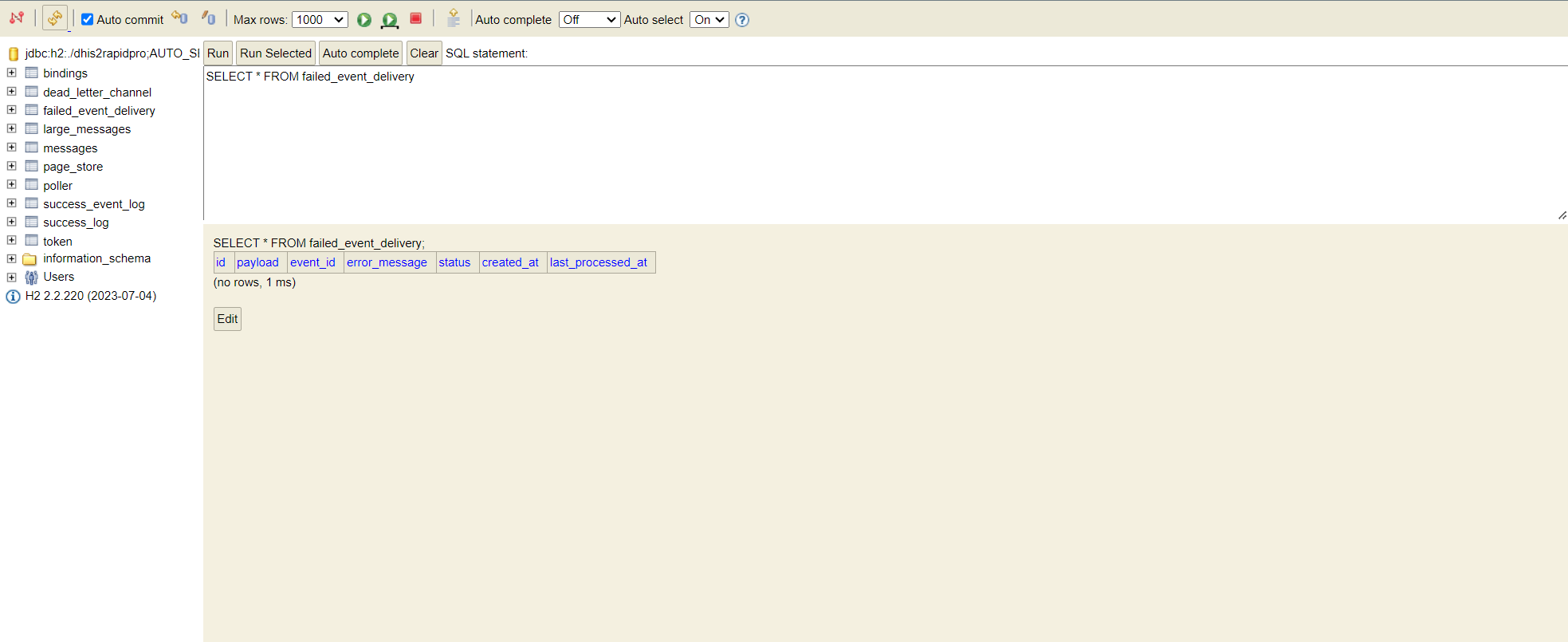
The H2 console is pre-configured to be available locally at https://localhost:8443/dhis2rapidpro/management/h2-console. The console's relative URL path can be changed with the config property spring.h2.console.path. You will be greeted by the database's login page after logging into the monitoring & management system using the default login username and password dhis2rapidpro. Both the default database login username and password are dhis2rapidpro.
SECURITY: immediately change the management and database credentials during setup (see
spring.security.user.nameandspring.security.user.passwordtogether withspring.datasource.usernameandspring.datasource.passwordin Configuration).
For security reasons, the console only permits local access but this behaviour can be overridden by setting spring.h2.console.settings.web-allow-others to true. To completely disable access to the web console, set the parameter spring.h2.console.enabled to false though you still can connect to the data store with an SQL client.
The H2 DBMS is embedded with DHIS-to-RapidPro but the DBMS can be easily substituted with a more scalable JDBC-compliant DBMS such as PostgreSQL. You would need to change spring.datasource.url to a JDBC URL that references the new data store. Note: for a non-H2 data store, the data store vendor's JDBC driver needs to be added to the DHIS-to-RapidPro's Java classpath.
Success Event Log
Apart from the FAILED_EVENT_DELIVERY table, the DHIS-to-RapidPro extension saves events that were successfully delivered to DHIS2 in another table named SUCCESS_EVENT_LOG. This table allows you to audit the transmitted events. Its schema is as follows:
| Column name | Column type | Description | Column value example |
|---|---|---|---|
| ID | INTEGER | An auto-increment number identifying the row uniquely. | 6 |
| DHIS_REQUEST | VARCHAR | DHIS2 request sent to update the event. | {"events":[{"event":"SMuyHgaOvQe","program":"w0qPtIW0JYu","programStage":"ZP5HZ87wzc0","enrollment":"Nk4RJ2rIIlz","orgUnit":"FV43JisquSm","status":"COMPLETED","occurredAt":"2023-10-26","dataValues":[{"dataElement":"IDS_AFI_SPECIMEN_COLLECTION_BLOOD","value":"true","comment":"RapidPro contact details: \"{\\n \\\"uuid\\\": \\\"651b724d-3da0-43e2-b62f-85347a790aad\\\",\\n \\\"name\\\": null,\\n \\\"urn\\\": \\\"whatsapp:12345678\\\",\\n \\\"urn_display\\\": \\\"12 34 56 78\\\"\\n}\""},{"dataElement":"IDS_AFI_SPECIMEN_COLLECTION_SERUM","value":"true","comment":"RapidPro contact details: \"{\\n \\\"uuid\\\": \\\"651b724d-3da0-43e2-b62f-85347a790aad\\\",\\n \\\"name\\\": null,\\n \\\"urn\\\": \\\"whatsapp:12345678\\\",\\n \\\"urn_display\\\": \\\"12 34 56 78\\\"\\n}\""},{"dataElement":"IDS_AFI_SPECIMEN_DATE_COLLECTION","value":"2023-10-26T14:11:23.550411+02:00","comment":"RapidPro contact details: \"{\\n \\\"uuid\\\": \\\"651b724d-3da0-43e2-b62f-85347a790aad\\\",\\n \\\"name\\\": null,\\n \\\"urn\\\": \\\"whatsapp:12345678\\\",\\n \\\"urn_display\\\": \\\"12 34 56 78\\\"\\n}\""}]}]} |
| DHIS_RESPONSE | VARCHAR | DHIS2 reply after updating the event. | {"status":"OK","validationReport":{"errorReports":[],"warningReports":[]},"stats":{"created":0,"updated":1,"deleted":0,"ignored":0,"total":1},"bundleReport":{"status":"OK","typeReportMap":{"TRACKED_ENTITY":{"trackerType":"TRACKED_ENTITY","stats":{"created":0,"updated":0,"deleted":0,"ignored":0,"total":0},"objectReports":[]},"RELATIONSHIP":{"trackerType":"RELATIONSHIP","stats":{"created":0,"updated":0,"deleted":0,"ignored":0,"total":0},"objectReports":[]},"ENROLLMENT":{"trackerType":"ENROLLMENT","stats":{"created":0,"updated":0,"deleted":0,"ignored":0,"total":0},"objectReports":[]},"EVENT":{"trackerType":"EVENT","stats":{"created":0,"updated":1,"deleted":0,"ignored":0,"total":1},"objectReports":[{"trackerType":"EVENT","uid":"SMuyHgaOvQe","index":0,"errorReports":[]}]}},"stats":{"created":0,"updated":1,"deleted":0,"ignored":0,"total":1}}} |
| RAPIDPRO_PAYLOAD | VARCHAR | Flow run JSON document. | { "flow": { "uuid": "a6928238-42c3-42b7-9c77-2e1f87945b39", "name": "Specimen collection and shipment to NRL" }, "contact": { "uuid": "96e423da-3365-4123-bd26-a9c00efdef0f", "urn": "whatsapp:12345678", "name": "John Doe" }, "results": { "event_id": { "value": "NfFndGv2Csc" }, "ids_afi_specimen_collection_blood": { "value": "true" }, "ids_afi_specimen_collection_serum": { "value": "true" }, "ids_afi_specimen_collector_family_name": { "value": "John" }, "ids_afi_specimen_collector_given_name": { "value": "Doe" }, "ids_afi_specimen_date_collection": { "value": "2023-10-19" }, "ids_afi_specimen_date_transport": { "value": "2023-10-19" }, "ids_afi_specimen_time_collection": { "value": "12:00" }, "ids_afi_specimen_time_transport": { "value": "12:00" } } } |
| EVENT_ID | VARCHAR | Event ID of the DHIS2 program stage event that an update was attempted on. | NfFndGv2Csc |
| CREATED_AT | TIMESTAMP WITH TIME ZONE | Denotes the time the row was created. | 2023-11-01 11:09:57.992 +0200 |
In addition to auditing, you can modify and re-transmit events to DHIS2 thanks to this table. The sequence of steps for re-transmitting reports is:
-
Copying the
RAPIDPRO_PAYLOADcolumn values from the relevant rows inSUCCESS_EVENT_LOG(i.e.,SELECT rapidpro_payload FROM SUCCESS_EVENT_LOG WHERE ...) -
Updating the retrieved
RAPIDPRO_PAYLOADcolumn values accordingly, and -
Inserting rows into
FAILED_EVENT_DELIVERYwherePAYLOADis equal to the updatedRAPIDPRO_PAYLOADcolumn values andSTATUSis equal toRETRY
Extending the Connector
Besides being highly configurable, just about any piece of DHIS-to-RapidPro's functionality can be extended during configuration to suit your particular needs. A prerequisite to extending the behaviour is having knowledge of Apache Camel: the routing engine powering DHIS-to-RapidPro. In particular, you should be knowledgeable in Apache Camel's YAML or XML DSL in order to be able to define integration flows that override or complement the existing flows.
Integration flows in DHIS-to-RapidPro, known as routes in Apache Camel, are named according to their purpose. You can override any route if you know its name. The following is a list of the important routes that you may want to override:
| Route name | Description |
|---|---|
| Consume Event | De-queues the event for delivery to DHIS2 |
| Transform Event | Maps and enriches the event as received by RapidPro prior to transmitting it to DHIS2 |
| Transmit Event | Transmits the event to DHIS2 |
| Retry Events | Re-queues events marked for retry |
| Save Failed Event Transfers | Save failed events to the database |
| Scan RapidPro Flows | Polls RapidPro for flow runs and queues them |
| Set up RapidPro | Configures RapidPro for integration with DHIS2 |
| Handle Contact | Creates or updates RapidPro contacts based on DHIS2 enrollments. The tracked entity attribute corresponding to the configured phone number attribute code is used as the contact WhatsApp URN |
| Fetch Due Events | Fetches due events from a DHIS2 program based on the configured DHIS2 program code |
| Trigger RapidPro Flow | Based on the fetched events, the corresponding RapidPro flows are triggered |
You should place the file or files containing the custom routes in a directory named routes within DHIS-to-RapidPro's current directory. The custom route will override the inbuilt route if the routes match by name. DHIS-to-RapidPro can reload the routes while its running therefore you have the option to extend the application at runtime.
IMPORTANT: Hot reloading is only recommended for non-production environments.
What follows is an example of a custom YAML route that overrides the inbuilt Transmit Event route:
\- route:
    id: "Transmit Event"
    from:
      uri: "direct:transmitEvent"
      steps:
        - setProperty:
            name: contactUrn
            jsonpath:
              headerName: originalPayload
              expression: "$.contact.urn"
        - setProperty:
            name: event\_id
            jsonpath:
              headerName: originalPayload
              expression: "$.results.event\_id.value"
        - setProperty:
            name: report\_type
            jsonpath:
              headerName: originalPayload
              expression: "$.flow.name"
        - toD:
            uri: "https://legacy.example/dhis2?authenticationPreemptive=true&authMethod=Basic&authUsername=alice&authPassword=secret&httpMethod=POST&msisdn=${exchangeProperty.msisdn}&raw\_msg=${exchangeProperty.raw\_msg}&facility=${header.orgUnitId}&report\_type=${exchangeProperty.report\_type}&aParam=${header.aParam}"
The above custom route overrides the original route such that events are delivered to a non-DHIS2 system. It extracts a number of values from the event payload with the setProperty key and adds them to destination URL as HTTP query parameters. Consult the Set Property and JSONPath Apache Camel documentation for further information about setting properties and extracting values from within a route.
Besides adding query parameters, the route also configures the HTTP client for basic authentication using the reserved query parameters authenticationPreemptive, authMethod, authUsername, and authPassword. Consult the HTTP component Apache Camel documentation for further information about configuring the HTTP client.
Troubleshooting Guide
Unexpected behaviour in DHIS-to-RapidPro typically manifests itself as:
-
errors in the applications logs, or
-
incorrect data (e.g., wrong program stage data element codes).
The first step to determine the root cause of unexpected behaviour is to search for recent errors in the dead letter channel:
\-- SQL is compatible with H2
SELECT \* FROM FAILED\_EVENT\_DELIVERY
WHERE status = 'ERROR' AND created\_at > DATEADD('DAY', -1, CURRENT\_TIMESTAMP())
The above SQL returns the events that failed to be saved in DHIS2 within the last 24 hours. Zoom in the ERROR_MESSAGE column to read the technical error message that was given by the application. Should the error message describe an ephemeral failure like a network timeout, the rule of thumb is for the system operator to update the STATUS column to RETRY in order for DHIS-to-RapidPro to re-processes the failed reports:
\-- SQL is compatible with H2
UPDATE FAILED\_EVENT\_DELIVERY
SET status = 'RETRY'
WHERE status = 'ERROR' AND created\_at > DATEADD('DAY', -1, CURRENT\_TIMESTAMP())
After issuing the above SQL, DHIS-to-RapidPro will poll for the RETRY rows from the data store and re-process the reports. Processed rows, whether successful or not, are updated as PROCESSED and have their LAST_PROCESSED_AT column updated to the current time. If a retry fails, DHIS-to-RapidPro will go on to insert a corresponding new ERROR row in the FAILED_EVENT_DELIVERY table.
Non-transient failures such as validation errors require human intervention which might mean that you have to update the payload column value so that it conforms with the expected structure or data type:
UPDATE FAILED\_EVENT\_DELIVERY
SET status = 'RETRY', payload = '{"flow":{"uuid":"665af904-a513-42b1-aa39-f4e596c6ef1a","name":"Specimen collection and shipment to NRL Interactive Demo"},"contact":{"uuid":"651b724d-3da0-43e2-b62f-85347a790aad","name":null,"urn":"whatsapp:12345678","urn\_display":"12 34 56 78"},"results":{"event\_id":{"value":"SMuyHgaOvQe","category":null,"node":"dd1da899-f1bd-4cf3-9c43-7f439c0d2aed","time":"2023-10-26T12:10:54.988285Z","input":null,"name":"event\_id"},"ids\_afi\_specimen\_collection\_blood":{"value":"true","category":null,"node":"2a6144cb-859c-43b0-8986-25f6f18393b0","time":"2023-10-26T12:11:23.550438Z","input":null,"name":"IDS\_AFI\_SPECIMEN\_COLLECTION\_BLOOD"},"ids\_afi\_specimen\_collection\_serum":{"value":"true","category":null,"node":"b881ce49-787c-416f-8816-d5cf28cda83d","time":"2023-10-26T12:11:23.550452Z","input":null,"name":"IDS\_AFI\_SPECIMEN\_COLLECTION\_SERUM"},"ids\_afi\_specimen\_date\_collection":{"value":"2023-10-26T14:11:23.550411+02:00","category":"Has Text","node":"4b2a7359-ea92-4179-8574-6e2fb25c0973","time":"2023-10-26T12:11:23.550416Z","input":"2023-10-26","name":"IDS\_AFI\_SPECIMEN\_DATE\_COLLECTION"}}}'
WHERE id = '1023'
Deeper technical problems might not manifest themselves up as failed reports but as exceptions in the application logs. The logs can be analysed from the Hawtio web console or directly from the log file dhis2rapidpro.log, situated in DHIS-to-RapidPro's working directory. Keep an eye out for exceptions while combing through the logs. Any exception messages, including their stack traces, should be collected from the logs and further analysed. You may want to reach out to the DHIS2 Community of Practice for troubleshooting support. If all else fails, you can try increasing the log verbosity to zone in on the root cause. Setting the config property logging.level.org.hisp.dhis.integration.rapidpro to DEBUG will lead to the application printing more detail in the logs. As a last resort, though not recommended, you can have the application print even more detail by setting logging.level.root to DEBUG.
CAUTION: be careful about increasing log verbosity since it may quickly eat up the server's disk space if the application is logging to a file, the default behaviour.